Install the beta
Lila’s beta installers aren’t signed yet, so your computer warns you the first time you open one. This page shows what you’ll see on Windows and on a Mac, and how to get past it.
Why the warning appears
Windows and macOS look for a digital signature on every app they open. The signature says who made it: on Windows, a certificate that Microsoft Defender SmartScreen checks; on a Mac, Apple’s check, called notarization. An app without one gets a warning, whatever is inside it.
Lila’s beta builds aren’t signed yet. The warning is about that missing signature, not about anything found in the app.
Signing is coming. It needs accounts with Microsoft and Apple that are being set up now. When they’re ready, new versions are signed, the warning stops appearing, and updates bring the signed version to you.
On Windows
- Download the installer,
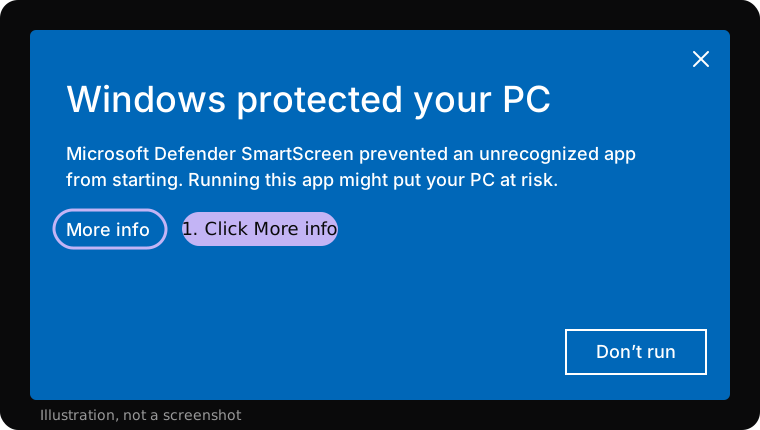
Lila-Setup-<version>.exe, with Download for Windows on the home page. - Double-click it. Windows shows a blue box, “Windows protected your PC”, with only a Don’t run button. Click More info.
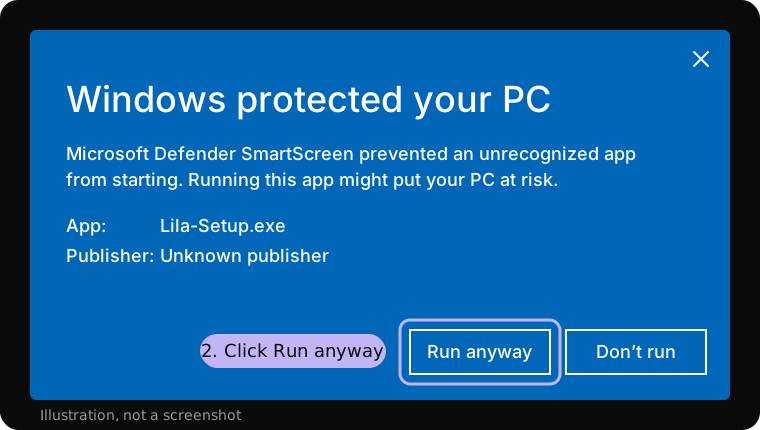
- The box now names the app,
Lila-Setup-<version>.exe, with “Unknown publisher”. Click Run anyway.
- The installer opens. It installs for your account and doesn’t need administrator rights. Carry on with Get started.
You only see this once for each installer you download.
My browser warns about the download first
Some browsers warn about files they haven’t seen often. In Edge, point at the download, click the ... that appears, then Keep. If Edge asks again, click Show more, then Keep anyway. In Chrome, open the download list and choose Keep. Then open the file as above.
I clicked Don’t run
Nothing was installed. Double-click the installer again (it’s in your Downloads folder) and click More info this time.
On a MacEarly
The Mac version is early, for Apple silicon Macs. Download the .dmg with Mac on the home page, open it, and drag Lila into Applications. Then open Lila from Applications. What happens next depends on your version of macOS (Apple menu > About This Mac).
macOS 15 Sequoia or newer
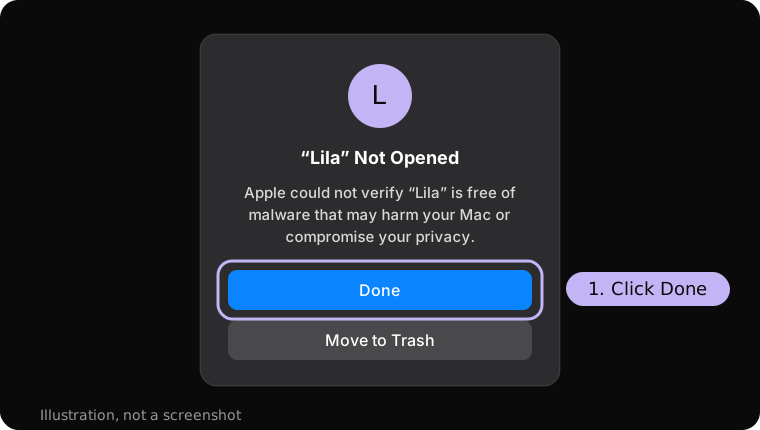
- The first time, macOS says “Lila” Not Opened, and that Apple could not check it for malware. Click Done, not Move to Trash.
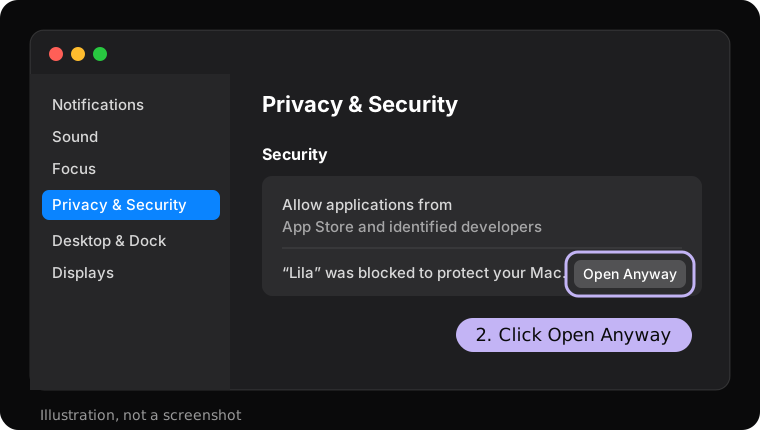
- Open System Settings > Privacy & Security and scroll down to Security. It says “Lila” was blocked to protect your Mac. Click Open Anyway.
- Click Open Anyway again in the box that appears, and enter your Mac’s password (or use Touch ID). Lila opens.
The Open Anyway button stays for about an hour after you first try to open her. If it isn’t there, open Lila from Applications once more, then look again.
macOS 14 Sonoma or older
- In Finder, open Applications and right-click (or Control-click) Lila, then choose Open.
- The box now has an Open button. Click it. Lila opens.
Double-clicking doesn’t offer Open the first time; the right-click does.
After the first time, Lila opens normally on any version.
Questions
Is it safe to open?
The warning means the installer isn’t signed, not that anything is wrong with it. Download Lila only from her home page, and she is the same app this guide describes. If you’d rather wait, signed versions are on the way.
Will I have to do this again?
On Windows, once for each installer you download; updates she downloads and installs herself don’t ask. On a Mac, once for each version you install. When signed versions arrive, the warnings stop.
It still won’t open
See Troubleshooting, or tell the team with Help and feedback in Settings once she’s running.